

Troubleshooting
Everything on this page is a symptom we have seen, with the reason behind it and the step that resolves it. It grows with what we find and what you report.
Your agent knows this page. Paste a message into a session and ask why it appeared; the agent finds the entry and walks you through the fix. If a symptom is missing here, send it in with the exact text.
Messages from macOS
Section titled “Messages from macOS”“Support Ending for Intel-based Apps” names Offsite Host Service
Section titled ““Support Ending for Intel-based Apps” names Offsite Host Service”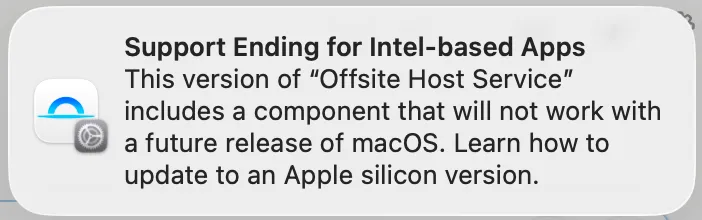
Symptom: macOS Tahoe shows this notification, and the app it names is Offsite Host Service.
Why: Apple is retiring Rosetta, the layer that runs Intel-only programs on Apple silicon. Since macOS Tahoe, the system posts this notice whenever an Intel-only program starts, and it credits the notice to the process responsible for that program. Everything you run inside an Offsite session (a terminal command, an agent, a tool the agent calls) runs under the Offsite Host Service, so when one of those programs is Intel-only, the notice names Offsite. The host service itself is an Apple silicon build.
The usual culprits are tools installed years ago as standalone Intel binaries:
a CLI downloaded from a vendor’s installer, an old Homebrew under
/usr/local, a Node package that shipped a prebuilt Intel binary, a project
toolchain fetched for the wrong architecture.
Fix: find the Intel-only program and replace it with an Apple silicon
build. Package managers ship the right architecture, so brew install … or
npm install -g … over the old copy resolves it. To check a single tool:
file "$(which firebase)"# "Mach-O 64-bit executable x86_64" → Intel-only, runs under Rosetta# "Mach-O universal binary … x86_64 arm64" → fineTo list every Intel-only tool on the paths a session uses:
for f in /usr/local/bin/* ~/.local/bin/*; do [ -x "$f" ] && lipo -archs "$f" 2>/dev/null | grep -qv arm64 && echo "$f"doneThe notice is informational. Until Apple removes Rosetta, the Intel-only tool keeps working exactly as before.
Setup and pairing
Section titled “Setup and pairing”Pairing the iPhone fails while on the same Wi-Fi
Section titled “Pairing the iPhone fails while on the same Wi-Fi”Symptom: you scan the QR code, the app shows the host, but Connect does nothing: no error, no connection.
Why: on the first connection, your iPhone still has to be authorized on the host (that is what the QR code’s one-time token is for). Today that authorization only happens when the connection goes through the Offsite relay, but when your iPhone and the host share a network, the app prefers the direct local path, where the token is never redeemed. The host then rejects the unknown device, and the app currently stays silent about it.
Fixed in current versions: the host now redeems the QR token on every connection path (local network, Tailscale, and relay), so the first connect works no matter which path wins. If you are on an older version: turn Wi-Fi off on the iPhone for the very first connect (so it uses the relay once and gets authorized), then turn Wi-Fi back on. All later connections work normally. Update both the host and the iPhone app to get the fix.
“Check that Remote Login is healthy on the Mac”
Section titled ““Check that Remote Login is healthy on the Mac””This older error text can appear when a connection is rejected during login. On hosts set up with current Offsite versions, Remote Login is not involved. The message usually means your device is not authorized yet (see above: scan a fresh QR from the Mac app, ⋯ menu → Show iPhone QR). QR tokens are single-use: a QR that already paired one device will not pair a second one.